
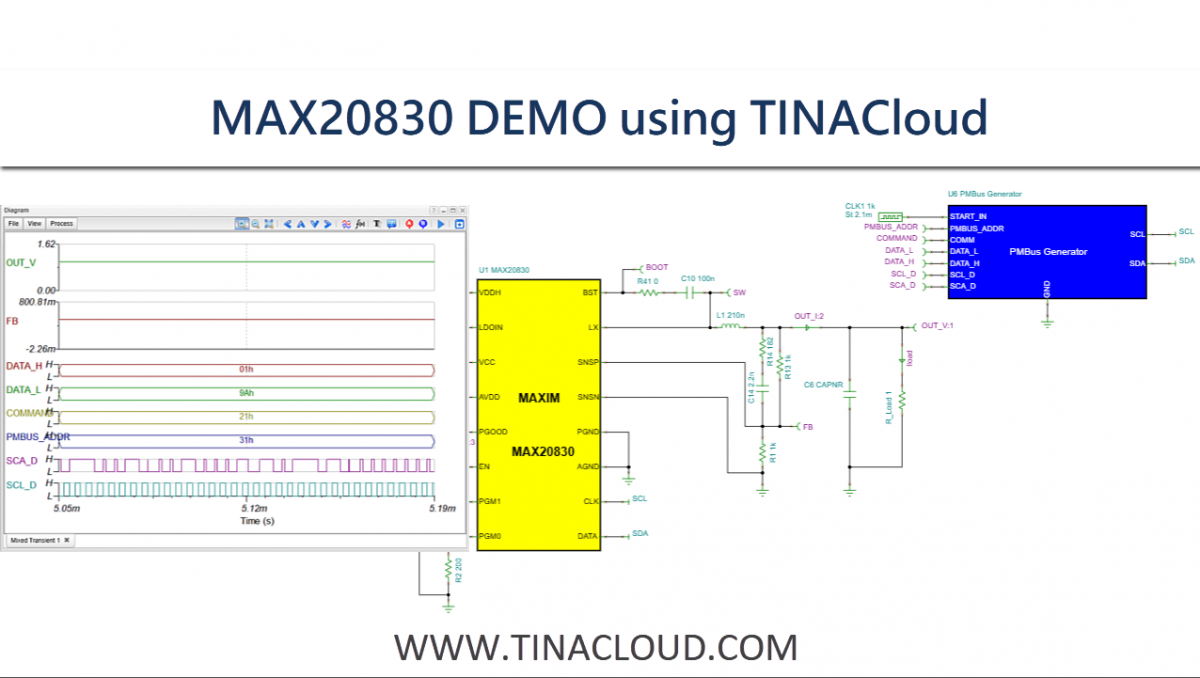
The MAX20830 is a fully integrated, high-efficiency step-down (buck) DC-DC switching regulator with a PMBus interface. The associated models can be used and executed in both TINA and TINACloud simulation environments.
The simulation results have been verified against real measurement data, ensuring reliable and accurate performance for design and analysis purposes.
In this tutorial, we’ll first run simulations in TINACloud software, then verify the results with physical measurements.
Simulation with TINACloud
Part 1: Basic Simulation with TINACloud
To begin, we will simulate the output voltage adjustment via hardware components.
- Open the Model: Navigate to the
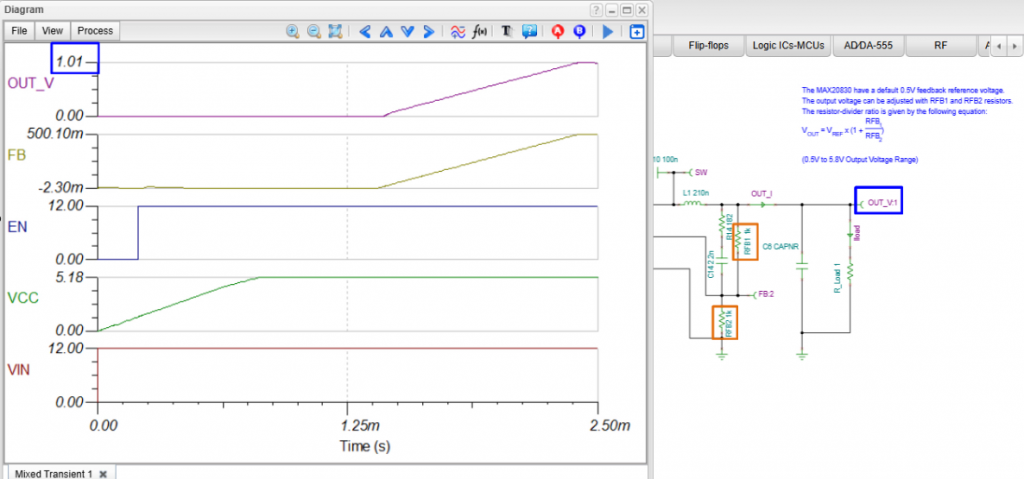
TINA Examples\Analog Devicesfolder and open MAX20830_VOUT.TSC. - Hardware Adjustment: The MAX20830 uses a default 0.5V feedback reference voltage (VREF). The external resistor divider determines the output voltage (VOUT).
- With RFB1 and RFB2 both set to 1kΩ, the output voltage is 1V.
- Run a Transient Analysis to observe the 1V output.
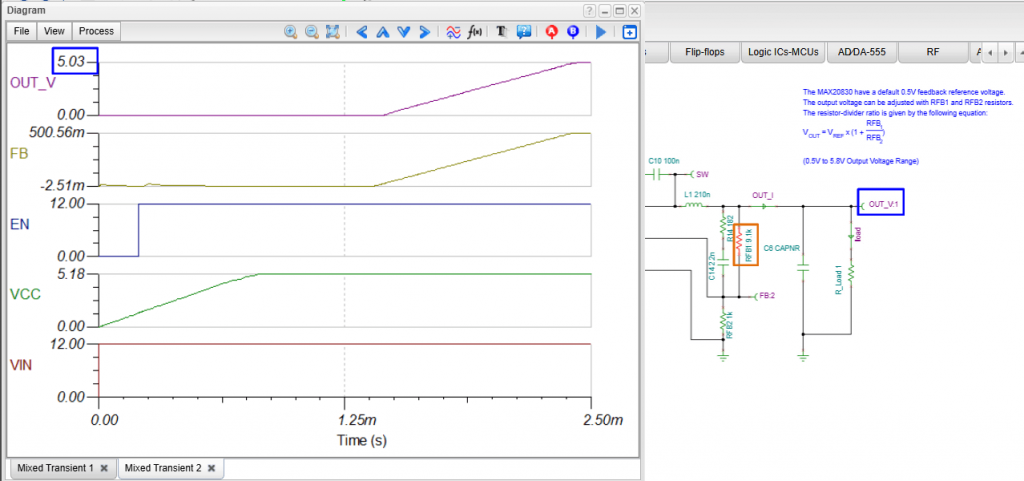
- Modifying the Output: To reach a 5V output, change the RFB1 value to 9.1kΩ and run the Transient Analysis again.
To change the output voltage value without replacing the resistors, the reference voltage can be programmed via the PMBus commands.
Part 2: Adjusting Output via PMBus
While resistors provide a fixed output, the MAX20830 also allows for dynamic voltage scaling via PMBus commands without changing physical components.
Open the MAX20830 PMBus TSC file located in the TINA Examples\Analog Devices folder.
Device Configuration
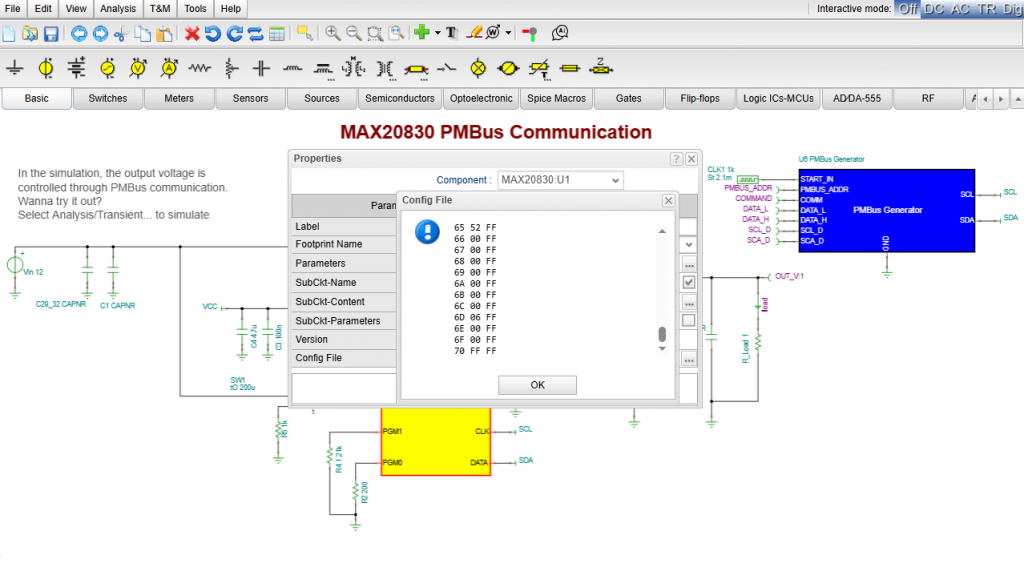
The default configuration is programmed using a configuration file. This allows you to set key electrical parameters before start-up, including:
- Reference voltage
- Overcurrent protection threshold
- Switching frequency
These settings correspond to the internal registers of the MAX20830 and can be modified via PMBus commands to reprogram the device. For a detailed list of commands, refer to the MAX20830 Datasheet.
Running the Analysis
The MAX20830 is configured to power up with an initial output voltage of 1V (using a default 0.5V reference). To observe the device behavior:
- Navigate to the Analysis menu.
- Select Transient… and press the Run button.
- In the simulation, the output voltage is first allowed to reach its initial value.
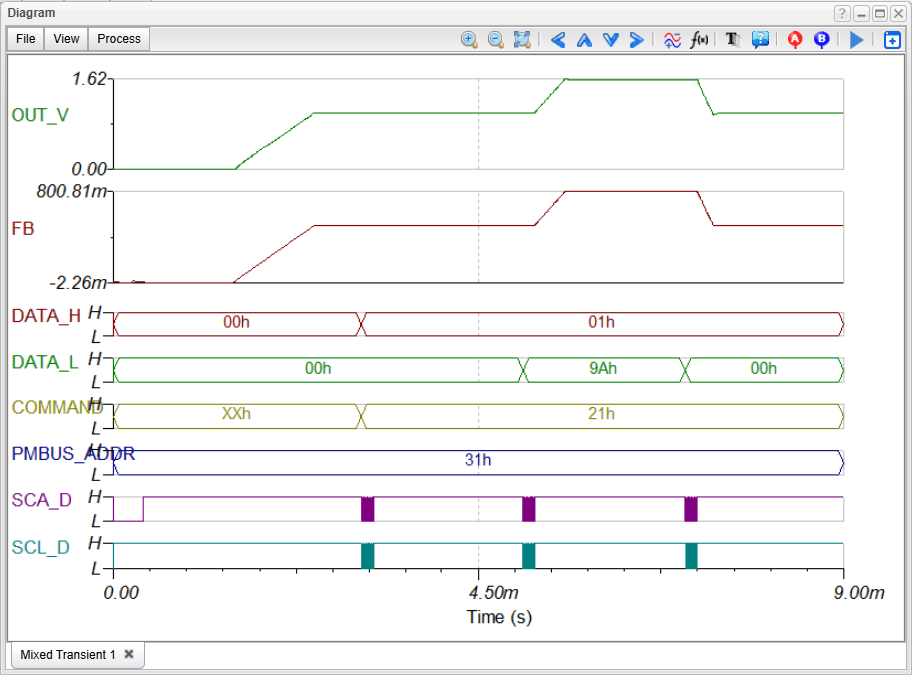
PMBus Communication Sequence
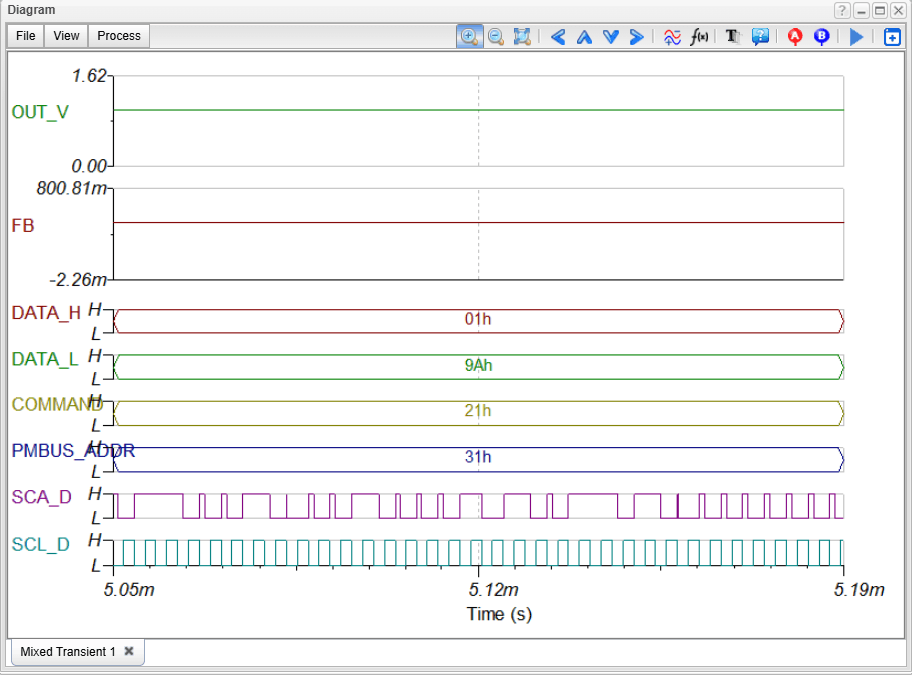
During the simulation, you can observe the PMBus communication protocol:
- Device Address: Transmitted first. The address is set to hexadecimal 31h via a 200Ω resistor on the PGM0 pin.
- Command: The VOUT command (21h) is sent next.
- Data: To update the reference voltage to 0.8V, the data bytes are sent (Lower byte: 9Ah, Higher byte: 01h).
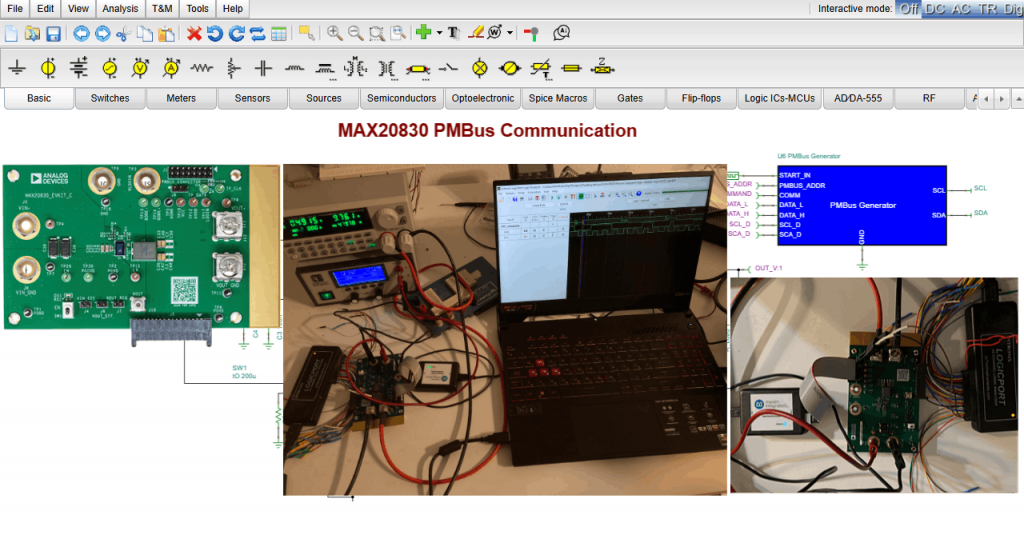
MAX20830EVKIT Physical Measurements
To verify the simulation, we used the MAX20830EVKIT Evaluation Board connected to a MAXPOWERTOOL002 USB-to-SMBus Interface.
Monitoring Setup:
- Output Voltage: Monitored via the Maxim Digital PowerTool software.
- PMBus Communication: Captured and monitored using a logic analyzer.
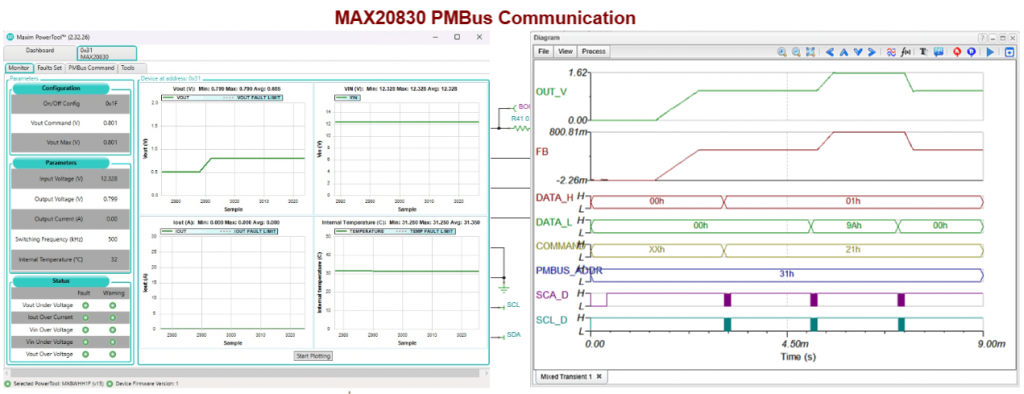
Verification Results
Just as in the simulation, the hardware starts with a 1V output. A PMBus VOUT command was sent via the laptop to change the reference voltage to 0.8V, resulting in an output voltage of 1.6V.
The results—specifically the transition from 0.5V to 0.8V—showed perfect consistency between the Maxim PowerTool and the TINACloud simulation. The communication sequences were clearly visible and identical in both the physical software and the simulation environment.
Conclusion
In conclusion, the MAX20830 DC‑DC converter can be accurately simulated in TINACloud. The PMBus communication circuit-including the output‑voltage‑change command and the device’s corresponding behavior-has been verified through measurements taken with the MAX20830EVKIT evaluation board.
You can learn more about TINACloud here: www.tinacloud.com
Explore more content from our channel: https://www.youtube.com/@TinaDesignSuite